Where does the spreadsheet cause a problem?
Start with the last row someone had to correct. Who entered it? Who relied on it? What happened before anyone noticed the error? A large workbook that one person can check may be easy to keep. A short list that tells finance which jobs to invoice deserves a closer look if nobody can tell who approved a change.
Trace one record from entry to the next team's decision. Mark where someone copies a value, interprets a colour or asks a colleague whether a row is final. Write down the rule behind that step. “The billing coordinator needs a manager's approval for the current amount” gives you something you can test.
Should you keep the sheet, configure a tool or build software?
| Option | When it fits | A practical test |
|---|---|---|
| Keep and improve the spreadsheet | The rules are stable, one person owns them and a mistake can be caught before the next team acts. | Give a colleague the instructions and a made-up record. Can they find the current file, enter the record and reproduce the expected total without calling its owner? |
| Configure software you already use | A job-management, CRM or accounting tool already tracks the record, its owner and its approval status. | Run a normal job, a correction and a cancellation using the permissions each person actually has. Check the history and the report finance receives. |
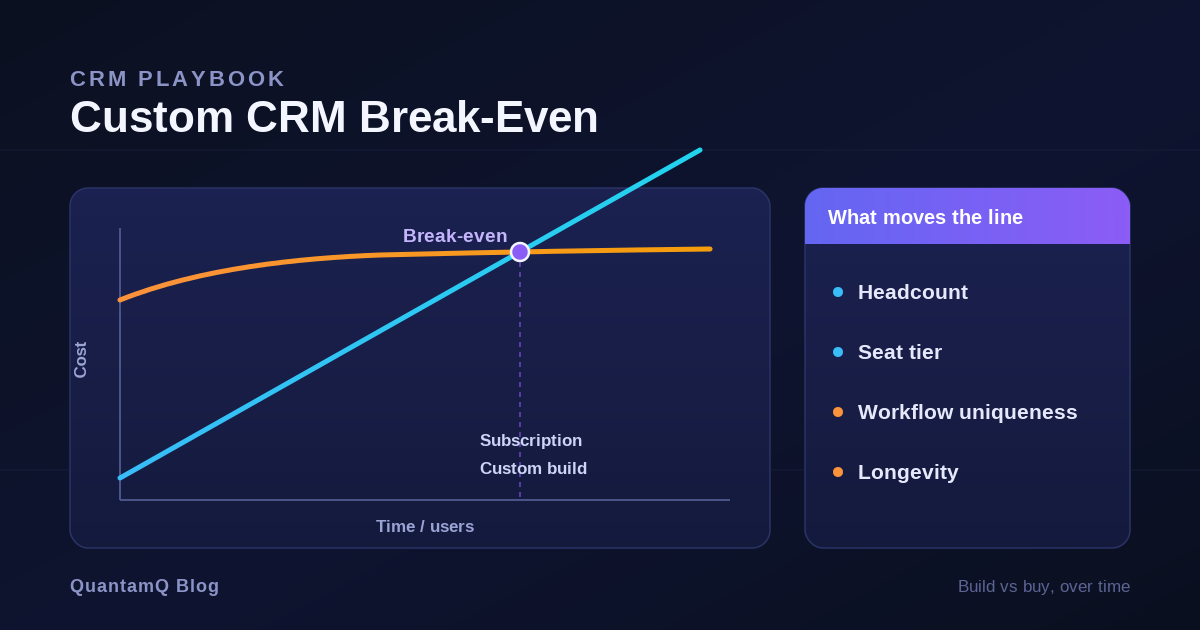
| Scope a custom workflow | An essential rule still fails in the existing tool. For example, a changed amount can reach billing on an old approval. | Write down the failed rule, the people affected and the one handoff a first release must support. Compare the cost of the workaround with building, running and maintaining that change. |
If you keep an Excel workbook, locking formula cells can prevent accidental edits. Manage who can open a confidential file separately through file access controls. Microsoft’s guide to protecting a worksheet.
A worked example from job approval to billing
Imagine a service team that marks finished jobs as ready to invoice. A coordinator enters the amount, a manager approves it, and finance receives the approved jobs. If someone changes the amount before invoicing, the manager must approve it again.
Try three fictional jobs in one currency. Jobs A and B are approved for 120 and 80. Job C is pending for 50. Finance should receive two jobs totalling 200. Now change B from 80 to 90. Until the manager approves B again, finance should see only A, totalling 120. After approval, the expected total is 210. Deliver the same batch twice in a test environment and check that each job produces only one invoice.
Also try approving a job as the coordinator. The attempt should leave the job pending. A reviewer should be able to see who changed the amount, who approved it and which version went to finance. If your current tool passes these tests, you have a concrete reason to use it.
How do you move the workflow without invoicing twice?
- Agree what a correct result looks like. Give each job a stable ID. Have operations and finance agree on the expected records, amounts and approval history, including what happens when a job is cancelled or corrected.
- Compare outputs before switching. Keep one system responsible for sending invoices. Give the candidate workflow the same inputs with invoice sending turned off. Compare the job IDs as well as the totals. Two wrong records can add up to the right amount.
- Choose who can switch and who can switch back. Name the person who signs off the comparison. At the switch, record the last job processed and which system owns the next invoice. If you switch back, reconcile all jobs received or invoiced since that point before resuming.
- Keep the records people still need. Ask finance which reports it uses at close and who needs access to historical approvals. Test that a read-only copy or export can answer those questions before retiring the editable workbook.
Common questions
What determines the cost and timing of a replacement?
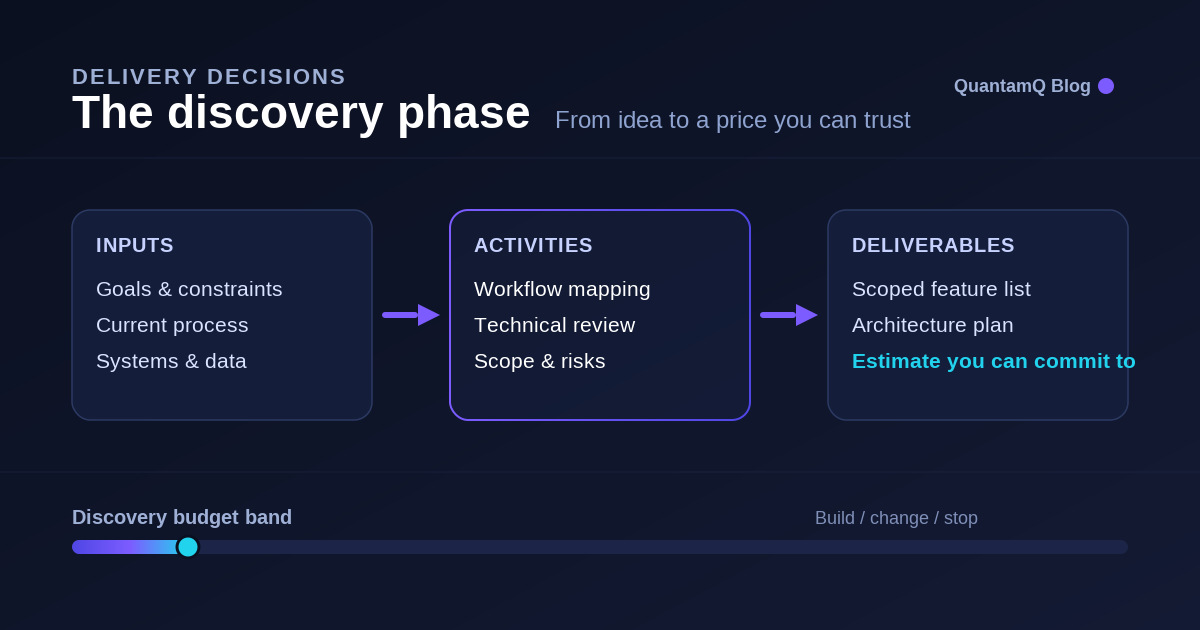
The estimate depends on which decisions the first release covers, the condition of the records, who needs access and what the next system accepts. Bring a redacted example of a normal job, a correction and the output finance expects to a scoping discussion.
Can our accounting system receive the approved jobs?
Check which imports or interfaces your account supports and what permissions they require. Try a sample with a stable job ID. Check how the receiving system reports success, rejects an invalid record and handles a retry. A reviewed export can be a workable first handoff.
When can we retire the spreadsheet?
When the people responsible for the workflow can reproduce the agreed results, explain discrepancies and recover from a missed or repeated handoff. Before making the sheet read-only, confirm which system will handle the next live record and where staff can retrieve the history.
Tell QuantamQ what the spreadsheet controls, who approves the result and where it goes next. A short description is enough for a first conversation. Keep customer records and confidential files out of the initial brief.